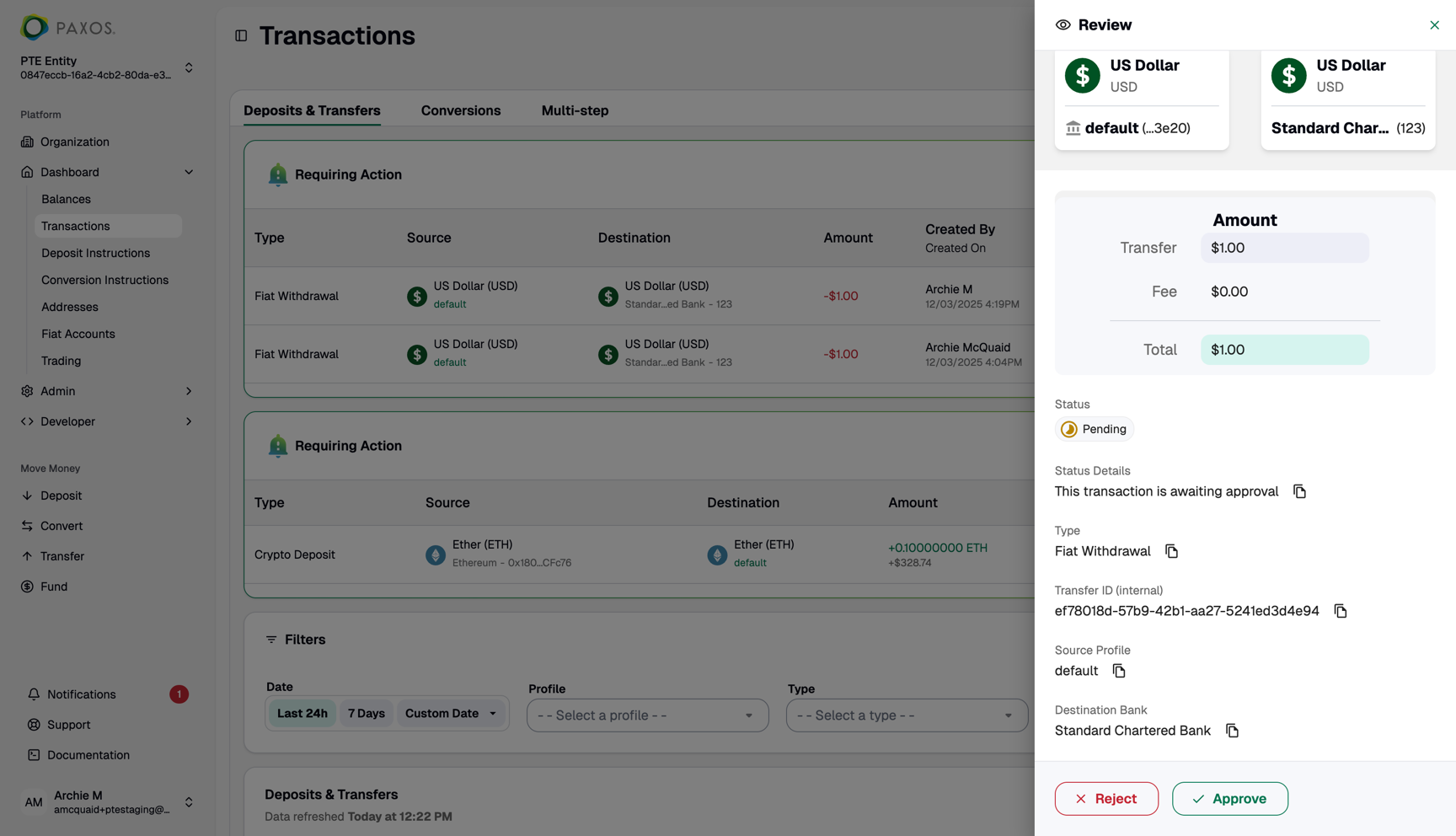
Current Approval Actions
Approvals are currently available for:- Adding crypto destination addresses
- Adding fiat accounts
- Creating fiat withdrawals — supports approval tiers
- Creating crypto withdrawals — supports approval tiers
- User roles: assigning or editing roles directly (non-SSO) and updating SSO group-to-role mappings (SSO)
- Adding, editing, or deleting API credentials
- Adding or deleting automation rules
- Adding or deleting webhooks
- Cross entity transfer
- Turning off an enabled approval policy
- Editing an approval policy configuration
Paxos is working on rolling out approvals for additional actions and more customization options for approval policies.
Approvals only apply to actions in the Paxos Dashboard. API-submitted actions and transactions are not affected.
Why Approvals Matter
Approvals helps your organization:- Enhance security by requiring multiple people to review sensitive changes
- Reduce errors by adding verification steps to critical actions
- Meet compliance requirements through documented review processes
- Maintain better control over where assets can be sent
Modifying a policy
You can edit individual approval policies to configure the number of approvers required for a specific action. Policy modifications are managed from Admin > Approvals, the same location used for enabling or disabling policies.Edits to approval policies require approvals themselves.
When a new approval is created, it uses the current configuration of the policy at that time. For example, if you have configured your “Add Fiat Account” policy to require 3 approvals, but later edit the policy, already created approvals will still require 3 approvals. You can see the number of approvals gained and total required (e.g.,
1/3 means 1 of 3).How Approvals Work
Let’s walk through an example of adding a new crypto destination address with Approvals enabled:➊ Enable Approvals
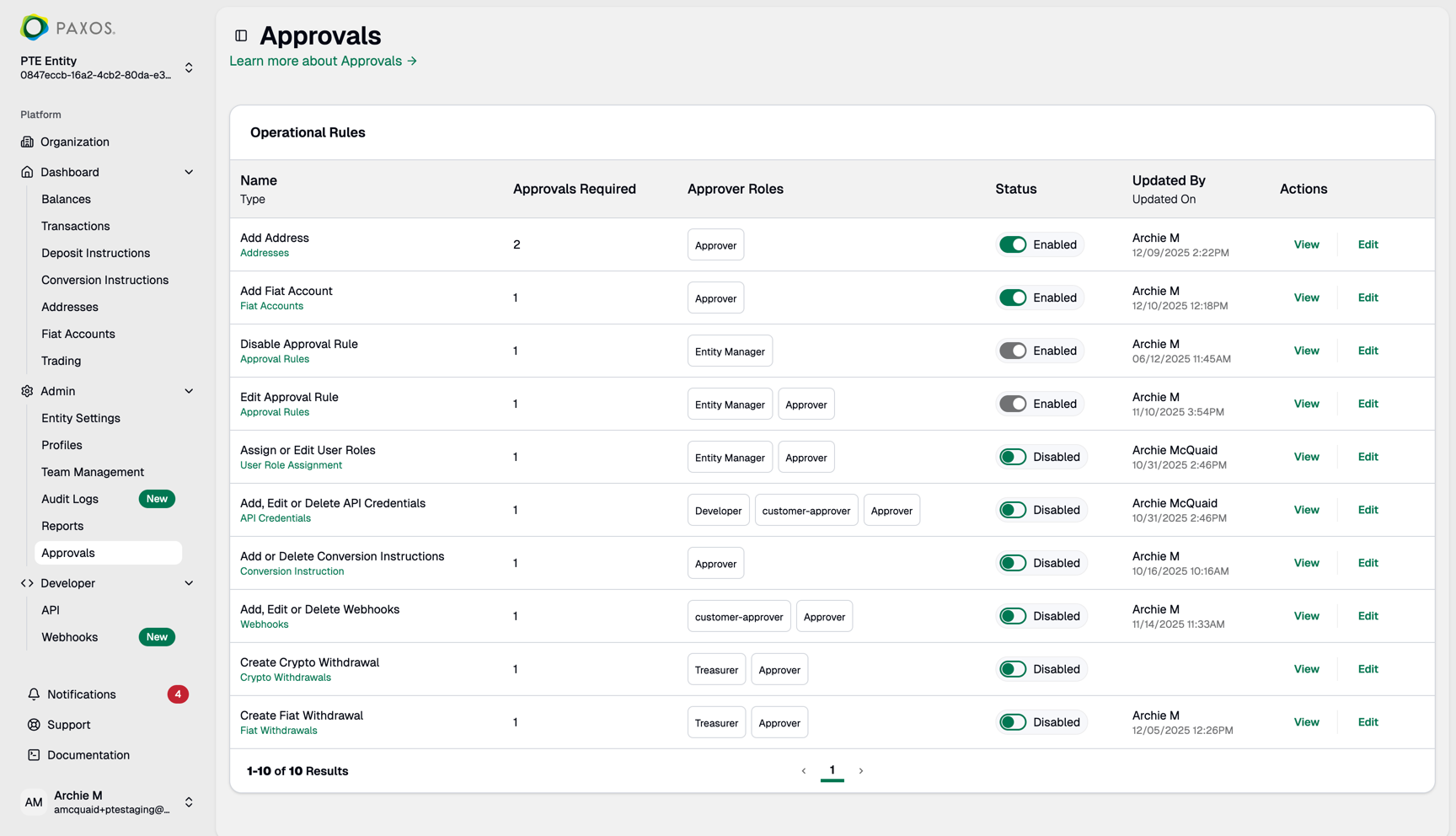
- An Entity Manager must first enable the Approvals feature for desired actions
- Go to Admin > Approval Controls
- Select “Add Address” to enable approval requirements for new crypto addresses
➋ Submit for Approval
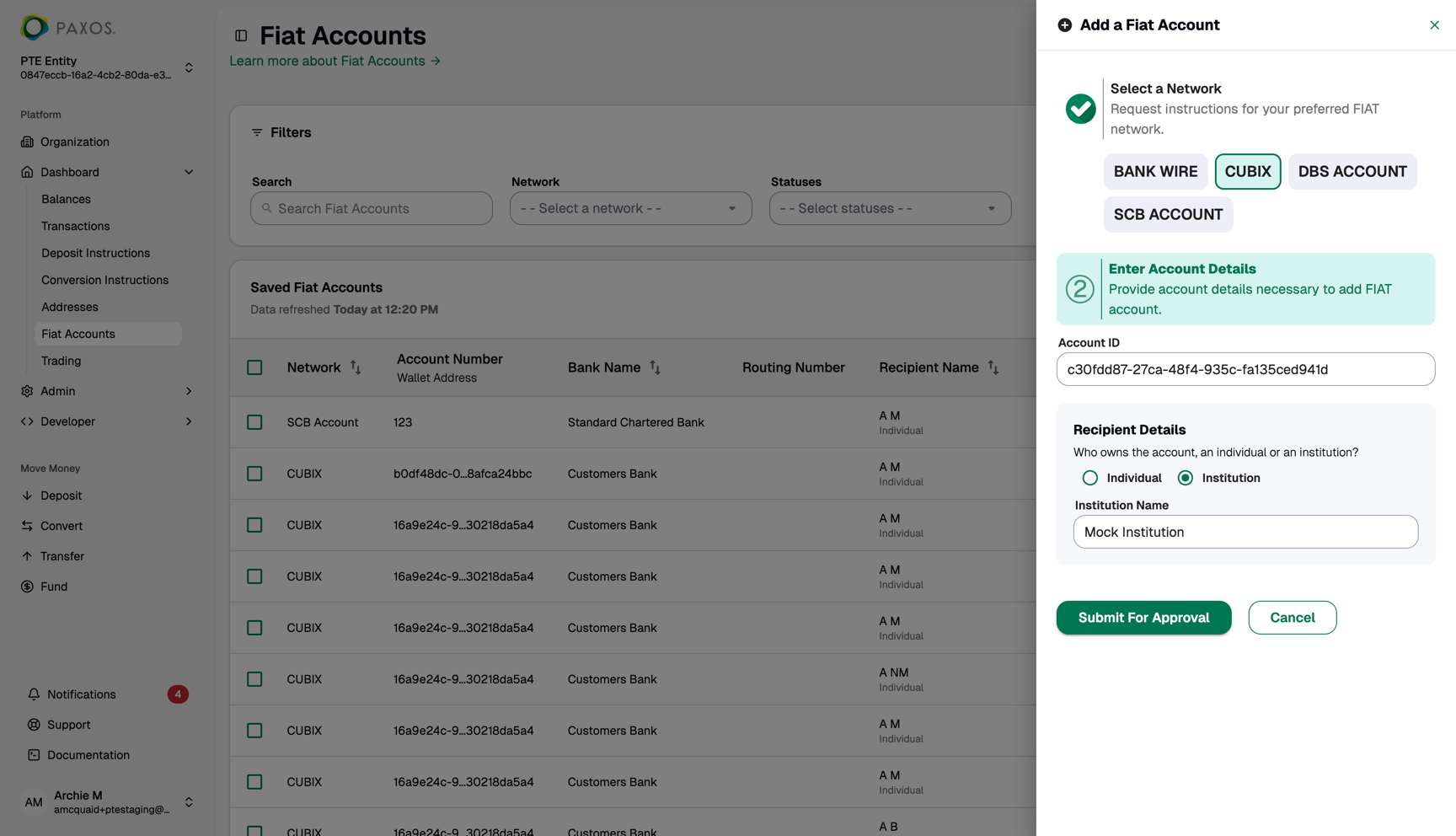
- A Treasurer submits a new crypto address following the standard add address process
- Instead of being added immediately, the address is marked as “Pending Approval”
➌ Track Pending Approvals
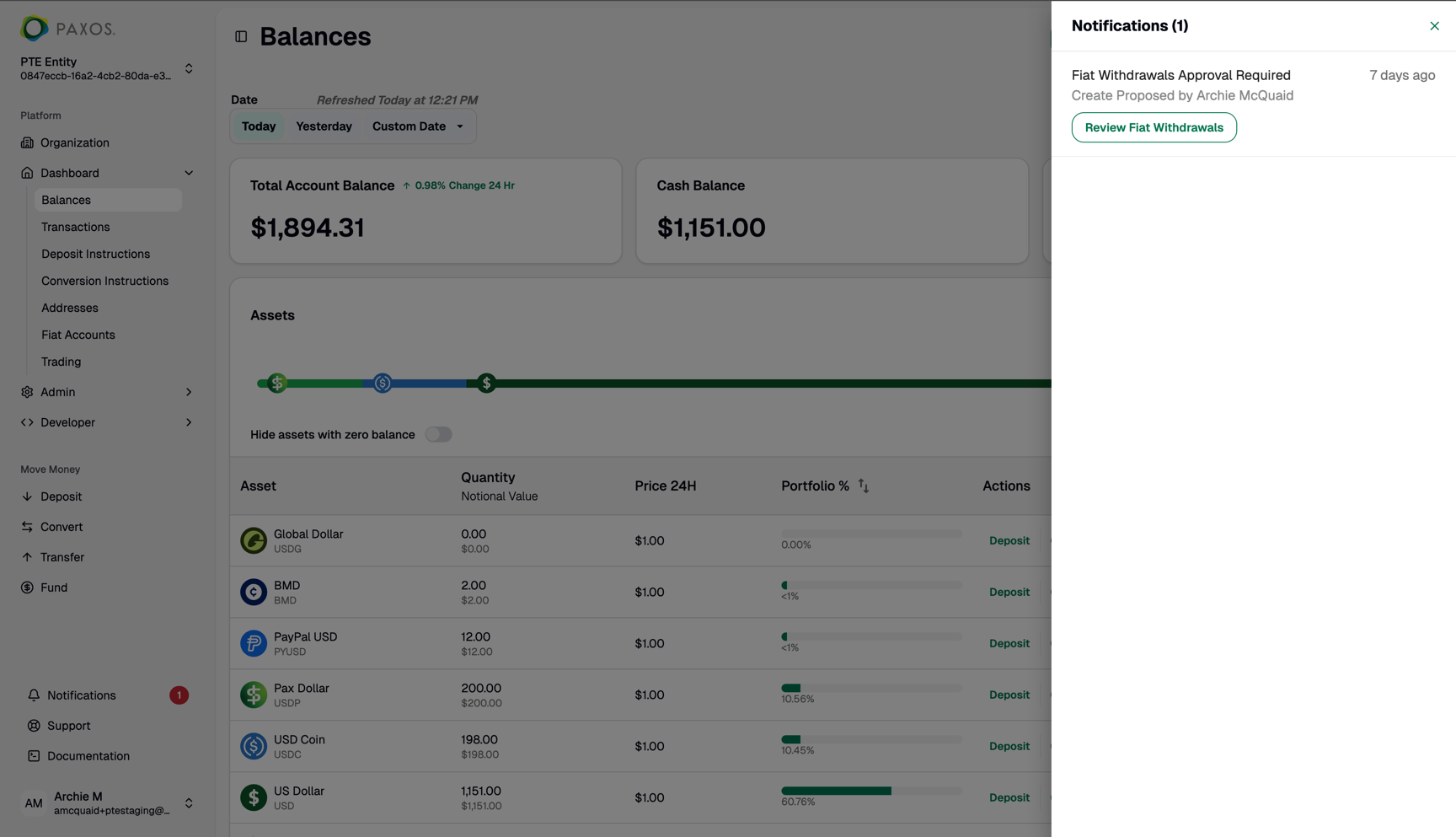
Pending approval notifications appear on both:- The Addresses page
- The Notifications drawer (click the bell icon to open)
➍ Review and Approve
- Any user with an Approver role can review pending submissions
- Approvers can choose to:
- Approve the address - making it available for future transactions
- Reject the address - preventing it from being added